Views: 117 Author: Site Editor Publish Time: 2026-08-28 Origin: Site
Upgrading electrical panels with smart technology often hits a frustrating technical roadblock. Installers frequently encounter provisioning timeouts and connection errors right out of the box. The root cause usually lies in how modern routers manage wireless traffic. Most new routers default to features like Band Steering or Smart Connect, which automatically force connected devices onto faster 5 GHz bands. Electrical panels demand a different approach. A hardware-level Smart Circuit Breaker relies exclusively on 2.4 GHz frequencies. This lower frequency provides the superior wall penetration and extended range necessary to communicate from inside a metal distribution box. When the router pushes the setup smartphone to 5 GHz while the breaker listens on 2.4 GHz, the pairing handshake fails completely. This guide provides a definitive, step-by-step framework for bypassing dual-band restrictions. You will learn how to securely provision a wifi circuit breaker and mitigate connectivity risks inside metal enclosures, ensuring a stable and reliable installation.
Frequency Necessity: 2.4 GHz is mandatory for electrical panel IoT devices due to its superior ability to penetrate physical barriers compared to 5 GHz.
The Band Steering Conflict: Modern routers broadcasting a single SSID for both bands will actively reject 2.4 GHz pairing requests from legacy or IoT chipsets.
Optimal Resolution Path: Creating a dedicated 2.4 GHz IoT guest network offers the highest reliability for provisioning while maintaining strict security isolation for the primary network.
Physical Interference: Metal breaker boxes act as Faraday cages; external antennas or strategic router placement are often required alongside correct network configuration.
Understanding the physics of radio frequencies explains why IoT manufacturers standardize on specific bands. Radio waves exhibit an inverse relationship between frequency and wavelength. The 2.4 GHz band produces longer waves, measuring approximately 4.9 inches from peak to peak. The 5 GHz band produces shorter waves, measuring about 2.3 inches. These longer 2.4 GHz waves travel further distances and easily diffract around obstacles. They penetrate dense materials like concrete, drywall, and steel enclosures far better than 5 GHz signals. A 5 GHz signal attenuates rapidly when passing through these same physical barriers, losing significant signal strength with every wall it encounters.
Hardware constraints also dictate this engineering choice. The standard IoT chipsets embedded in a remote smart MCB utilize 2.4 GHz transceivers. These components require significantly lower power consumption. Managing heat dissipation inside a densely packed electrical panel is a primary engineering concern. Lower power draw translates directly to lower thermal output from the smart components. Furthermore, 2.4 GHz chips offer better cost efficiency for manufacturing and align perfectly with established smart home communication protocols.
Network bandwidth requirements for electrical monitoring are minimal. The breaker only transmits basic telemetry data, such as voltage, current, and simple ON/OFF command packets. It does not stream high-definition video or require the massive data transfer rates provided by 5 GHz networks. The stability, reliability, and extended range of the 2.4 GHz band make it the optimal choice for power distribution monitoring. Attempting to force high-frequency communication through a steel NEMA enclosure simply results in dropped packets and offline devices.
Feature | 2.4 GHz Band | 5 GHz Band | Impact on Panel Installation |
|---|---|---|---|
Wavelength | Longer (~4.9 inches) | Shorter (~2.3 inches) | Longer waves bypass internal house framing better. |
Wall Penetration | Excellent | Poor | 2.4 GHz pushes through steel panel doors effectively. |
Maximum Range | Up to 150 feet indoors | Up to 50 feet indoors | Allows router placement further from the utility room. |
Bandwidth Capacity | Lower (up to 600 Mbps) | Higher (up to 1300+ Mbps) | Telemetry data requires less than 1 Mbps. |
Network equipment manufacturers designed Band Steering to simplify the user experience. Also known as Smart Connect, this feature merges the 2.4 GHz and 5 GHz bands under a single network name or SSID. The router actively monitors connected devices. When it detects a device capable of 5 GHz communication, like a modern smartphone, it actively steers that device to the 5 GHz band. This frees up the congested 2.4 GHz space for older devices.
This creates a critical handshake failure during IoT installation. The smartphone running the setup application connects to the unified SSID and is immediately steered to the 5 GHz band. Meanwhile, the smart breaker only possesses a 2.4 GHz radio. When the app attempts to pass the local network credentials to the breaker, the devices are effectively speaking on different frequencies. The router blocks the cross-band communication during the provisioning phase, and the setup fails.
Modern mobile operating systems introduce additional hurdles. Android and iOS implement strict privacy controls regarding local network access and location services. If these permissions are disabled, the setup application cannot read the broadcasted SSID data. The operating system blocks the app from seeing the network name. This often triggers false warnings suggesting the phone is on a 5 GHz network, even if it is physically connected to a 2.4 GHz signal.
Installers must recognize the symptoms of this conflict immediately to avoid wasting hours on site. Identifying these alerts prevents unnecessary hardware replacements.
The setup application times out at exactly 3% or 5% during the pairing countdown.
The app displays a persistent "Please connect to a 2.4 GHz network" error despite being on the home Wi-Fi.
The device LED continues to blink rapidly after the pairing process finishes, indicating it never received the credentials.
The router administration logs show rejected authentication requests from an unknown MAC address.
Overcoming band steering requires specific network configuration strategies. You cannot simply force the breaker to accept a 5 GHz signal. You must adapt the network environment to accommodate the hardware. Each method offers different balances of reliability, security, and ease of implementation.
This approach involves accessing the router's administrator panel and manually disabling the Band Steering feature. You then rename the networks to distinct identifiers. For example, you might name them "HomeNetwork_2G" and "HomeNetwork_5G."
This method guarantees a high success rate for pairing. The installer simply connects the phone to the 2G network, ensures the breaker is in pairing mode, and proceeds. However, it requires manual network management. It will disrupt existing devices previously connected to the unified SSID, forcing the property owner to reconnect their televisions, laptops, and smart speakers. It scales well for environments deploying a high volume of legacy IoT devices that demand stable, dedicated connections without router interference.
Many modern routers support guest networks. You can enable a guest network and restrict its broadcast exclusively to the 2.4 GHz band. This network remains isolated from the main local area network.
This provides an excellent security posture. Segmenting untrusted IoT traffic prevents lateral movement across the network if a device becomes compromised. It entirely bypasses 5 GHz interference during setup because the guest SSID only exists on the lower frequency. This method aligns with advanced security practices. It keeps the primary unified SSID intact for high-speed devices while providing a safe, reliable sandbox for electrical monitoring hardware.
Log into the router settings and temporarily turn off the 5 GHz radio broadcast. Connect the phone to the remaining 2.4 GHz signal, pair the device, and then reactivate the 5 GHz radio.
This strategy keeps the unified SSID intact for the rest of the facility. It is the least disruptive to the existing network architecture. Once provisioned, the breaker stores the network credentials in its non-volatile memory. It will remain securely locked onto the 2.4 GHz band even after the 5 GHz band returns. The router will attempt to steer the breaker, but since the breaker lacks a 5 GHz radio, it will simply ignore the steering commands and maintain its 2.4 GHz link.
Mesh networks often hide advanced administrator settings, making it impossible to separate bands or disable 5 GHz. You can utilize the physical limitations of the 5 GHz band to force a connection. The installer walks 40 to 50 feet away from the nearest router node, or steps outside the building entirely.
The smartphone will eventually drop the short-range 5 GHz signal. To maintain connectivity, the phone's operating system will automatically switch to the long-range 2.4 GHz band. Verify the switch in the phone's Wi-Fi settings, then initiate the pairing sequence at this distance. This requires zero technical configuration of the router but relies heavily on environmental layout. It can yield inconsistent results if the mesh nodes are densely packed.
Turn off the main property router completely. Take a secondary mobile phone or tablet and set up a temporary Wi-Fi hotspot. Configure this hotspot using the exact same SSID and password as the main router. Ensure the hotspot is set to broadcast in 2.4 GHz only (a standard setting on most mobile devices).
Use the primary phone to connect to the hotspot and pair the device. Once pairing completes, turn off the mobile hotspot and power the main router back on. The breaker will automatically migrate to the router's 2.4 GHz band because the credentials match perfectly. This avoids router reconfiguration entirely but requires two mobile devices on site during the initial setup.
Users often worry that enabling 2.4 GHz or separating SSIDs will degrade the performance of their high-speed 5 GHz network. Modern dual-band routers utilize independent radios, antennas, and processors for each frequency band. Operating the 2.4 GHz band for IoT devices does not inherently slow down the 5 GHz band used for streaming and computing. They operate on entirely different physical spectrums.
To prevent performance degradation on the 2.4 GHz band itself, you must manage channel interference. The 2.4 GHz spectrum is crowded with interference from microwaves, Bluetooth devices, and neighboring networks. Access the router settings and manually assign the 2.4 GHz band to non-overlapping channels. Channels 1, 6, or 11 are the only clear options in North America. Do not use auto-channel selection, as routers frequently jump to overlapping channels like 3 or 8, causing packet loss.
Additionally, restrict the channel width to 20 MHz rather than 40 MHz. A 40 MHz width bonds two channels together, which increases speed but drastically increases susceptibility to interference. A 20 MHz width minimizes overlapping interference from neighboring networks and ensures a stronger, more reliable connection penetrating the electrical cabinet.
Never attempt configuration on an unseated or improperly wired device. The breaker must be securely mounted to the DIN rail inside the panel. Terminate all line and load connections properly. A qualified electrical professional must safely energize the panel before any pairing begins. Do not attempt to pair the device on a test bench using temporary wiring.
Verify the signal strength at the installation site. Open the electrical panel door and use a smartphone or a dedicated Wi-Fi analyzer app. You need to confirm a signal strength of at least -70 dBm on the 2.4 GHz band at the exact location of the breaker. A signal of -50 dBm is excellent, while anything worse than -75 dBm will cause intermittent offline status. If the signal is weak, address the network layout before attempting to pair.
Prepare the mobile device before launching the application. Navigate to the mobile operating system settings. You must enable Location Services and grant Local Network Access permissions to the setup app. Without these permissions, the app cannot detect the network environment or broadcast the pairing payload.
Ensure the installer's mobile device is actively connected to the verified 2.4 GHz network or the mirrored mobile hotspot. Disable cellular data temporarily to force the phone to route all traffic through the Wi-Fi connection.
Put the Tuya WiFi smart MCB into pairing mode. Press and hold the physical pairing button on the device for 5 to 10 seconds. Release the button when the LED indicator begins to blink rapidly. A rapid blink indicates the device is ready to receive credentials.
Select the appropriate pairing mode in the application. The software offers two distinct methods for passing credentials to the hardware.
EZ Mode (Default): This is the standard auto-discovery method. It utilizes Bluetooth and Wi-Fi broadcasts to locate the rapidly blinking device. The phone broadcasts the SSID and password encrypted over the local network, and the breaker catches it.
AP Mode (Fallback): If EZ mode fails due to router firewall rules or multicast restrictions, switch the app to AP Mode. You must also hold the pairing button on the breaker again until the LED blinks slowly. The breaker will broadcast its own internal hotspot, usually named "SmartLife-XXXX". Connect the phone directly to this hotspot to manually push the network credentials to the hardware.
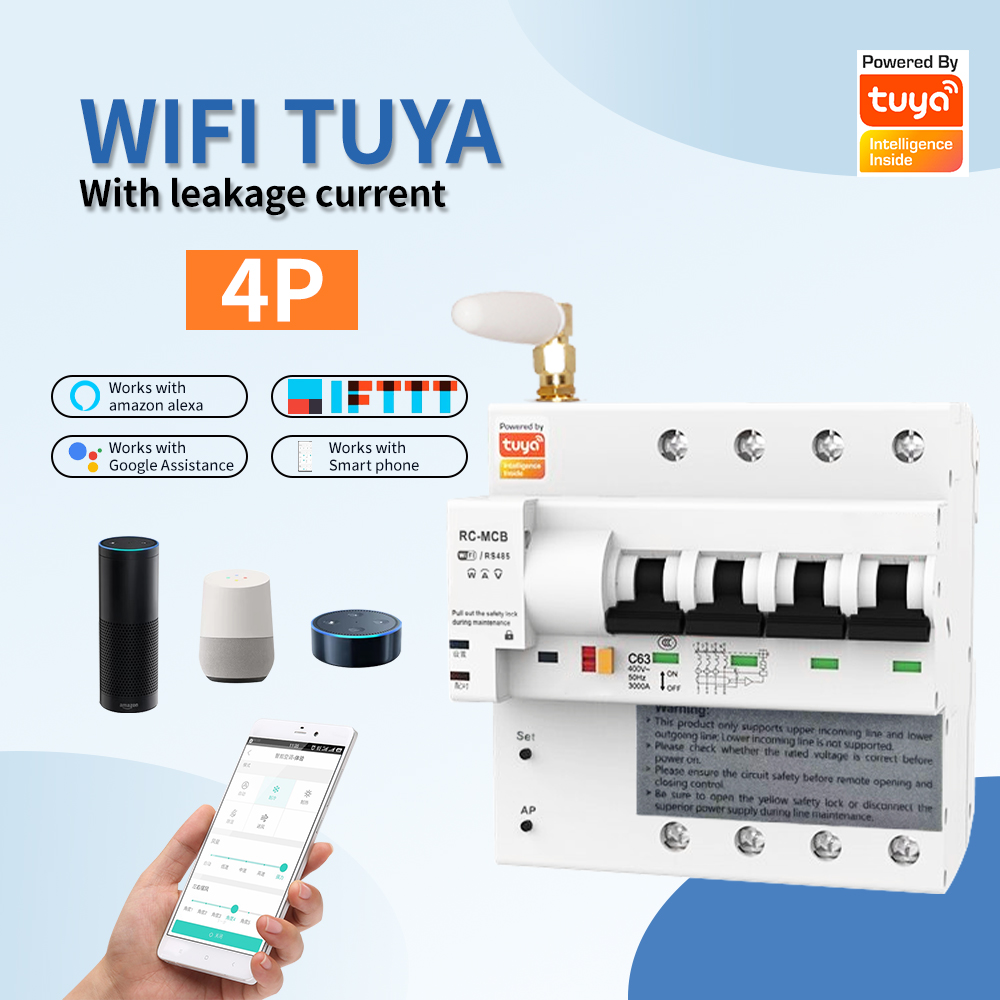
The physical environment poses the greatest risk to long-term stability. Metal distribution boxes act as Faraday cages, severely attenuating radio frequency signals. If the internal signal is too weak, you must implement hardware solutions. Consider utilizing breakers equipped with external magnetic antennas. These antennas connect via an SMA port on the breaker and mount outside the metal enclosure, completely bypassing the Faraday cage effect. Alternatively, install a dedicated 2.4 GHz Wi-Fi repeater immediately adjacent to the panel. In some non-load-bearing scenarios, replacing the solid metal panel door with a heavy-duty polymer alternative resolves the interference entirely.
Network authentication protocols also cause silent failures. Many older or cost-effective IoT chipsets do not support the newer WPA3 security standard. If the router is set to WPA3-only, the breaker will see the network but fail to authenticate. Ensure the 2.4 GHz network or the dedicated IoT guest network is configured to use WPA2-PSK (AES) encryption to guarantee hardware compatibility.
Dynamic IP addressing creates long-term reliability issues. When a router reboots or a DHCP lease expires, the breaker might receive a new IP address. This sudden change can cause the device to drop offline from the control application until the cloud server updates the routing tables. To prevent this, access the router's LAN settings and assign a Static IP or create a DHCP reservation using the breaker's MAC address. This ensures the device maintains a consistent address for uninterrupted remote monitoring and control.
Successfully deploying smart electrical infrastructure requires precise network management alongside physical installation. By controlling the wireless environment, you eliminate the most common provisioning failures and ensure long-term stability.
Verify your mobile device is locked onto a 2.4 GHz frequency before initiating any pairing sequence.
Configure a dedicated IoT guest network to isolate smart breakers and improve overall system security.
Assign a static IP address to the breaker post-installation to prevent offline drops caused by DHCP lease expirations.
Test signal strength directly at the open panel and deploy external antennas if metal enclosures block the transmission.
A: This usually happens because the setup app lacks permission to read your network data. Go to your phone settings and ensure Location Services and Local Network Access are enabled for the specific smart home application.
A: Yes. Once the breaker successfully receives the network credentials and connects to the 2.4 GHz band, it will ignore the 5 GHz signals. You can safely reactivate band steering on your router.
A: A metal box significantly weakens the signal, acting like a Faraday cage. If the router is far away, the signal will fail. You may need an external antenna or a Wi-Fi extender placed near the panel.
A: EZ mode automatically broadcasts credentials from your phone to the device. AP mode requires you to connect your phone directly to a temporary Wi-Fi hotspot generated by the breaker to manually transfer the network details.
A: Random disconnects are typically caused by weak signal strength, overlapping Wi-Fi channel interference, or DHCP IP address conflicts. Setting a static IP and changing the 2.4 GHz channel to 1, 6, or 11 usually resolves this.